

Dashboard
The dashboard provides a high-level overview of your LLM usage across all providers.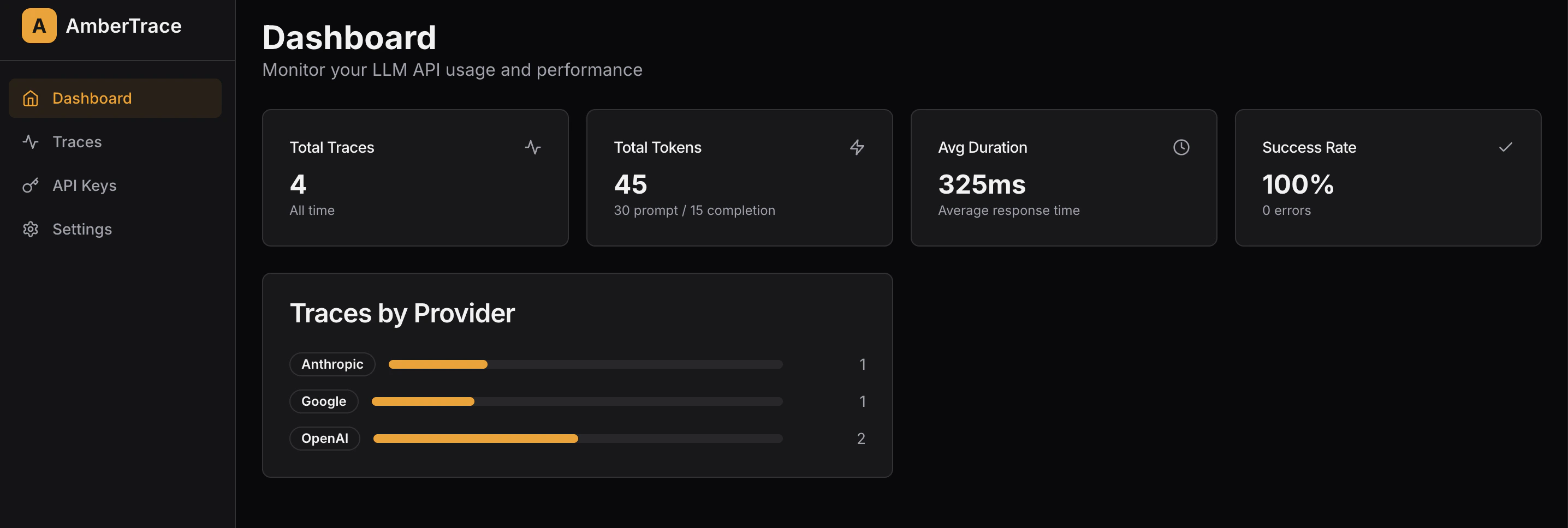
Traces
The Traces page allows you to view and analyze individual LLM API calls.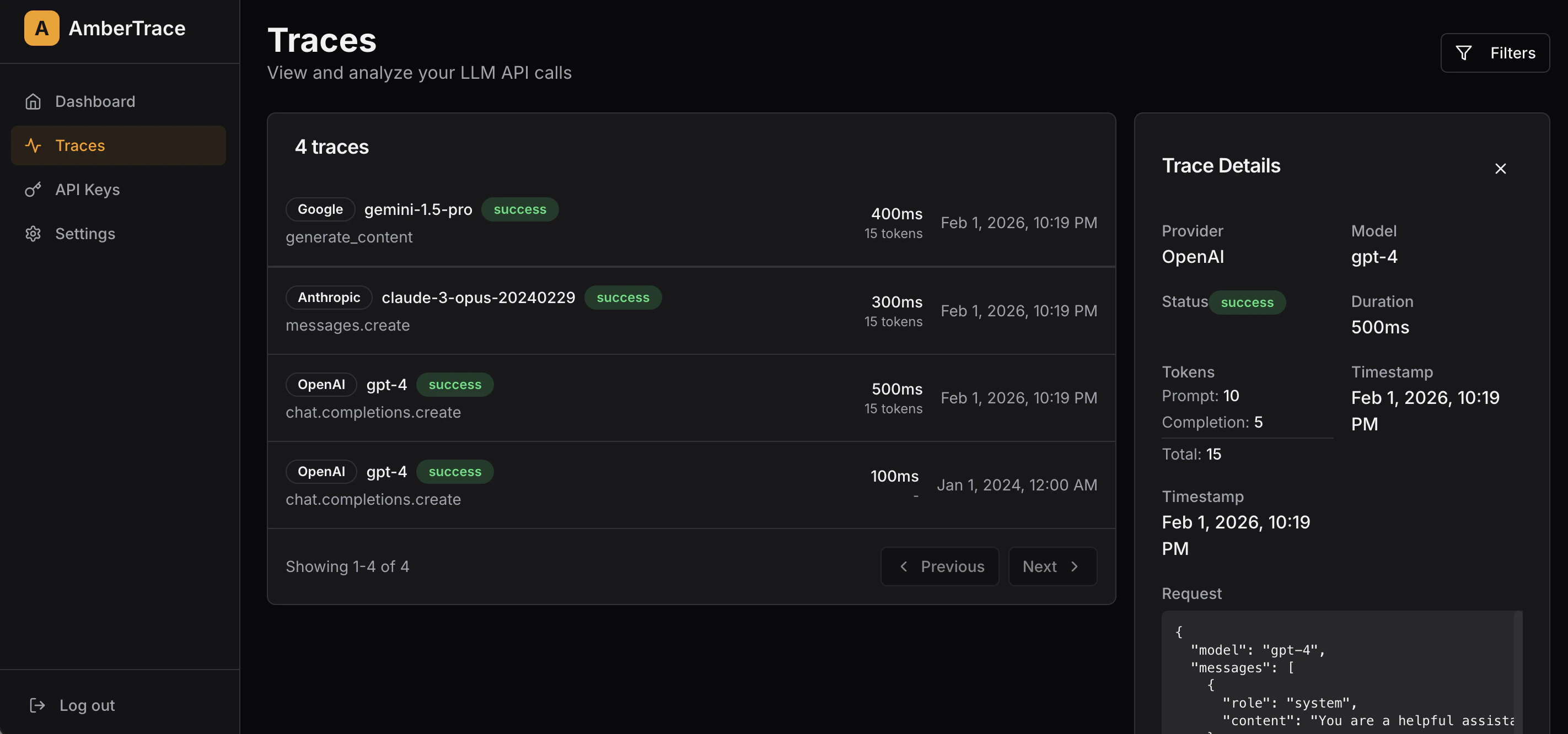
- Provider — Show only OpenAI, Anthropic, Google, or all
- Model — Filter to a specific model
- Status — Show only successful calls, only errors, or all
- Metadata — Provider, model, status, duration, token breakdown, timestamp
- Request — Full JSON request payload including messages and parameters
- Response — Full JSON response from the LLM (successful calls)
- Error — Error details with type, message, and code (failed calls)
API Keys
Manage the keys used to authenticate your SDK with the AmberTrace backend.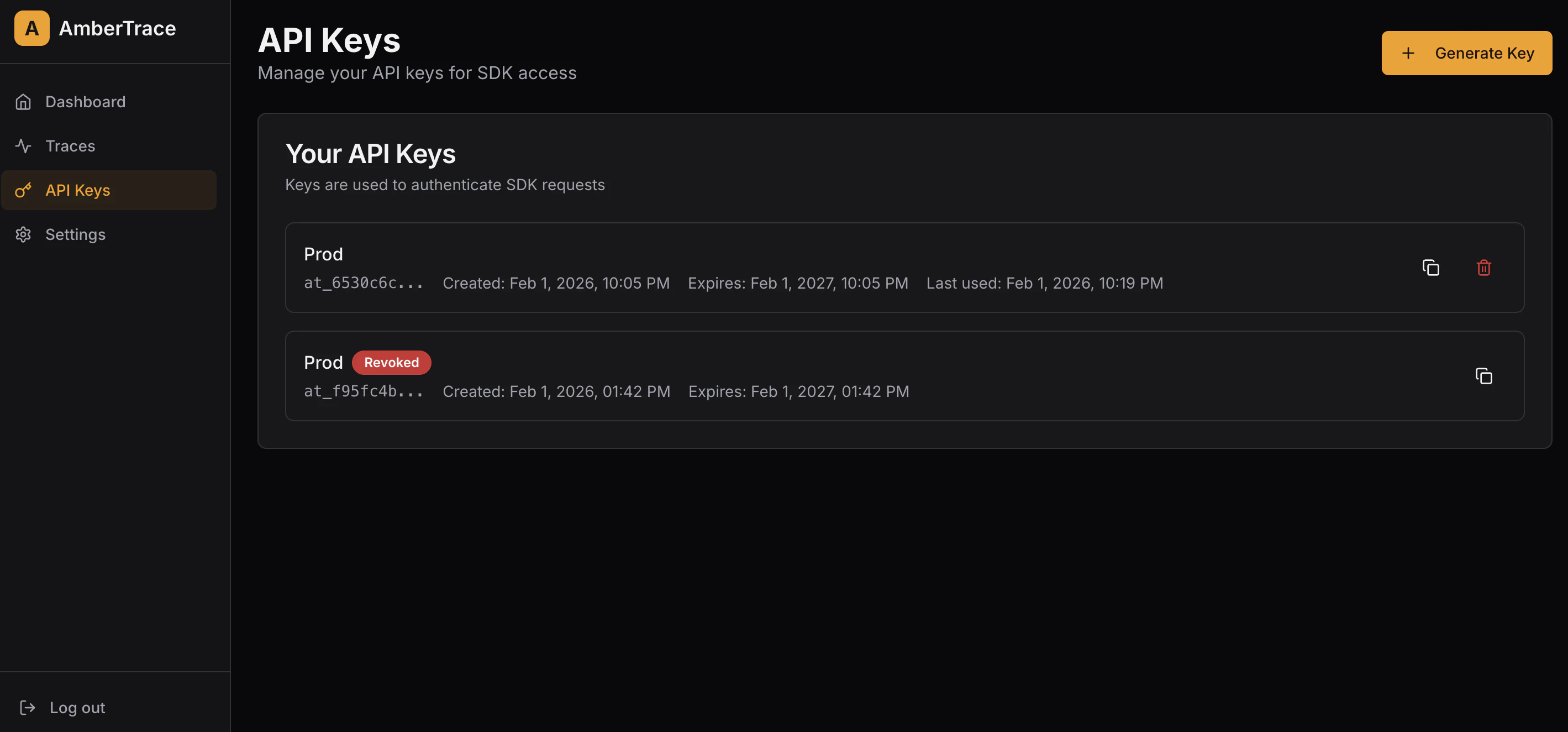
- Click Generate Key
- Enter a name (e.g., “Production Server”)
- Set expiration in days (default: 365)
- Click Generate
Copy your API key immediately after it is generated. You will not be able to see the full key again — only the prefix (e.g.,
at_abc123...) will be visible.- Name — The label you assigned
- Key prefix — First characters of the key (masked)
- Created — When the key was generated
- Expires — Expiration date (if set)
- Last used — When the key was last used