> ## Documentation Index
> Fetch the complete documentation index at: https://docs.ambertrace.dev/llms.txt
> Use this file to discover all available pages before exploring further.
# Portal
The AmberTrace portal is your central hub for monitoring LLM API usage, debugging issues, and managing your account.
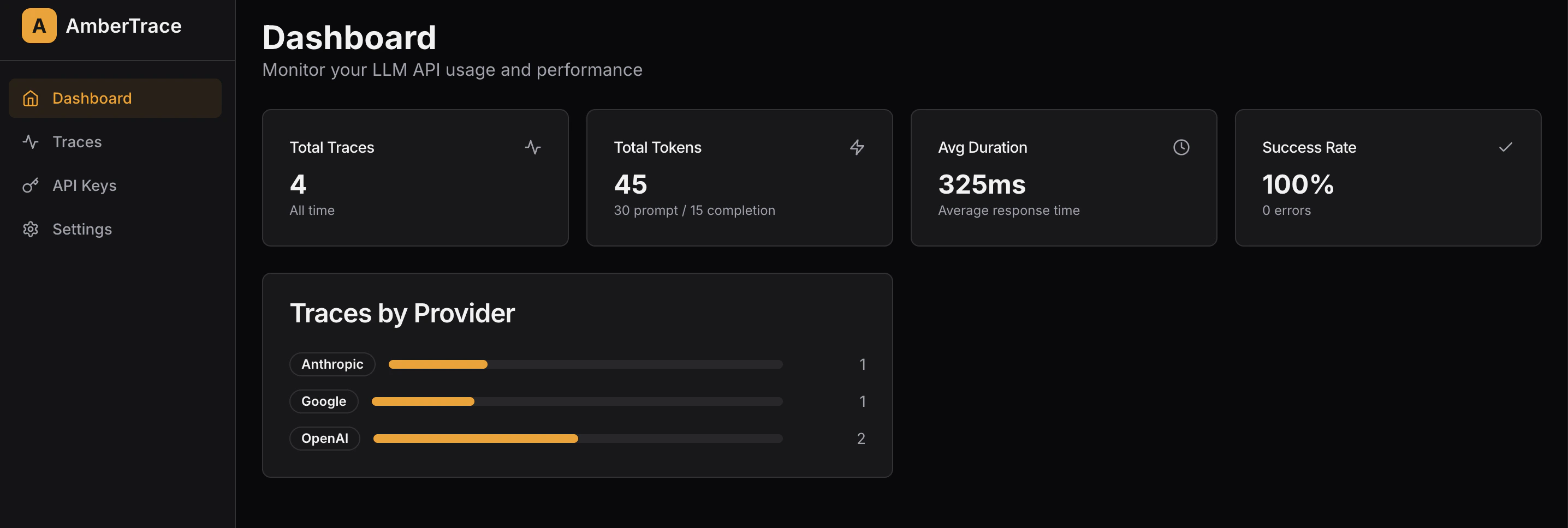
### Dashboard
The dashboard provides a high-level overview of your LLM usage across all providers.
 ### Traces
The Traces page allows you to view and analyze individual LLM API calls.
### Traces
The Traces page allows you to view and analyze individual LLM API calls.
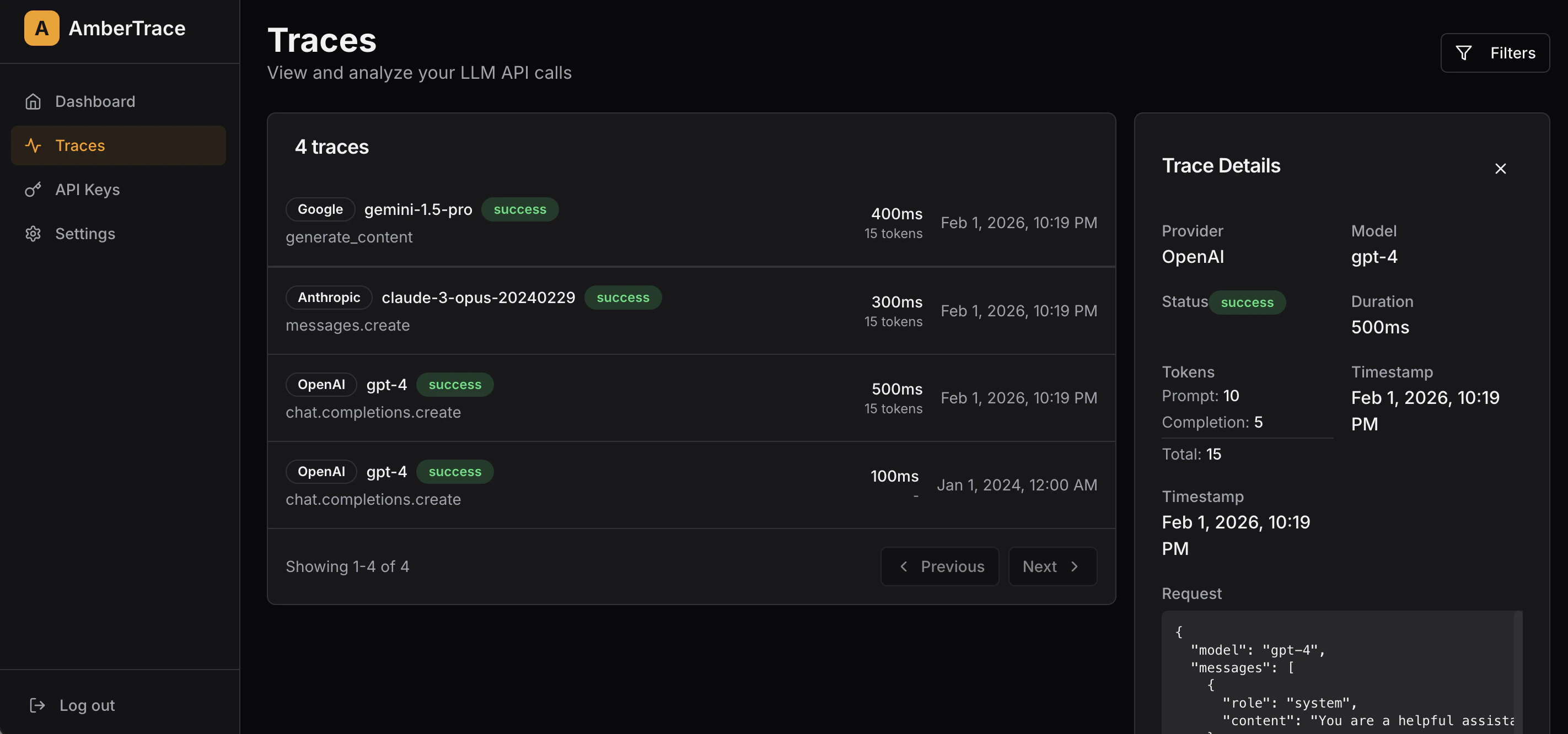 Filter traces by:
* **Provider** — Show only OpenAI, Anthropic, Google, or all
* **Model** — Filter to a specific model
* **Status** — Show only successful calls, only errors, or all
An active filter count badge appears on the filter button. Use "Clear filters" to reset all filters at once.
**Trace Detail**
Click any trace row to open the detail panel showing:
* **Metadata** — Provider, model, status, duration, token breakdown, timestamp
* **Request** — Full JSON request payload including messages and parameters
* **Response** — Full JSON response from the LLM (successful calls)
* **Error** — Error details with type, message, and code (failed calls)
### API Keys
Manage the keys used to authenticate your SDK with the AmberTrace backend.
Filter traces by:
* **Provider** — Show only OpenAI, Anthropic, Google, or all
* **Model** — Filter to a specific model
* **Status** — Show only successful calls, only errors, or all
An active filter count badge appears on the filter button. Use "Clear filters" to reset all filters at once.
**Trace Detail**
Click any trace row to open the detail panel showing:
* **Metadata** — Provider, model, status, duration, token breakdown, timestamp
* **Request** — Full JSON request payload including messages and parameters
* **Response** — Full JSON response from the LLM (successful calls)
* **Error** — Error details with type, message, and code (failed calls)
### API Keys
Manage the keys used to authenticate your SDK with the AmberTrace backend.
 **Generating a Key**
1. Click **Generate Key**
2. Enter a name (e.g., "Production Server")
3. Set expiration in days (default: 365)
4. Click **Generate**
Copy your API key immediately after it is generated. You will not be able to see the full key again — only the prefix (e.g., `at_abc123...`) will be visible.
**Managing Keys**
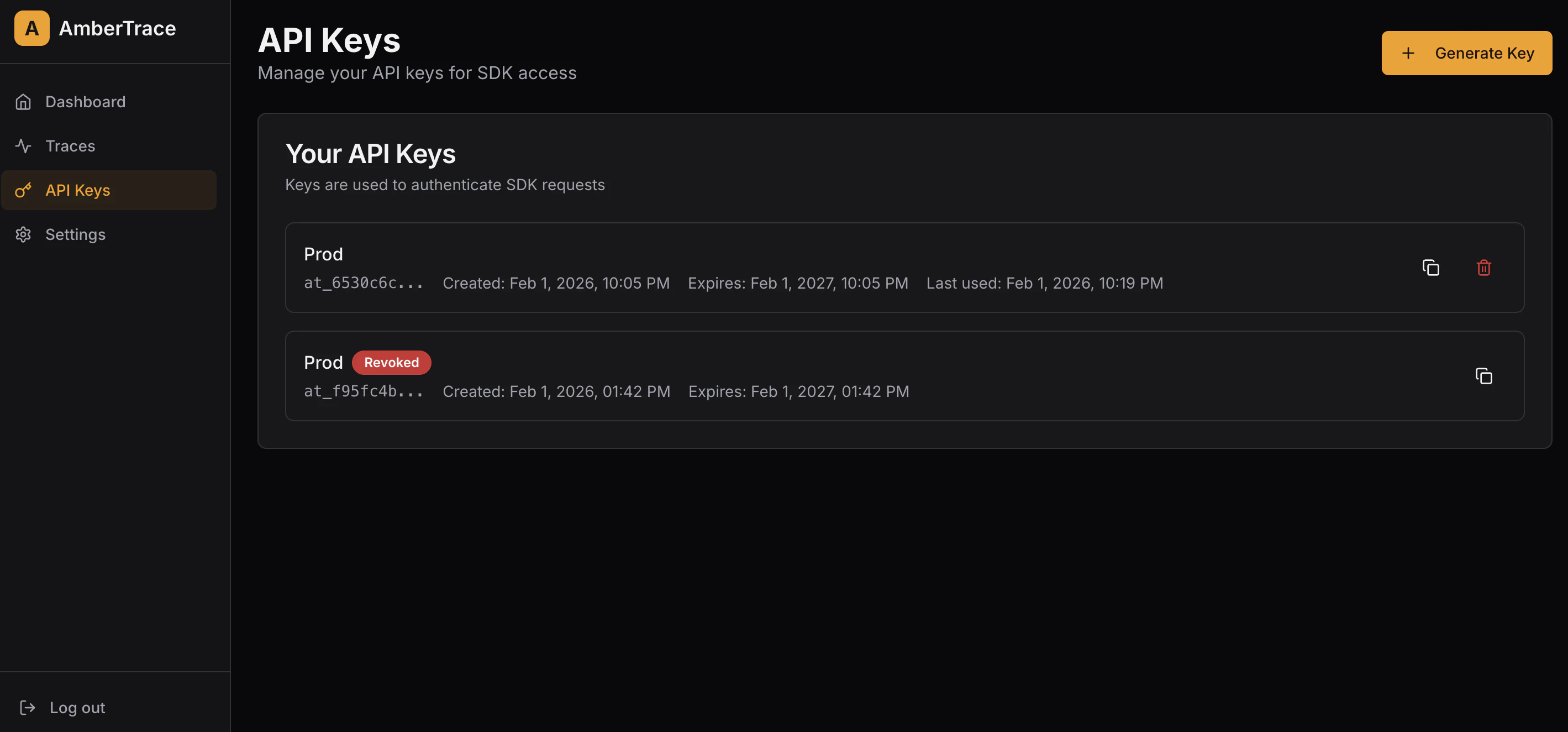
Each key displays:
* **Name** — The label you assigned
* **Key prefix** — First characters of the key (masked)
* **Created** — When the key was generated
* **Expires** — Expiration date (if set)
* **Last used** — When the key was last used
You can **copy** the key prefix or **revoke** a key. Revoking is permanent — revoked keys cannot be used for authentication.
**Generating a Key**
1. Click **Generate Key**
2. Enter a name (e.g., "Production Server")
3. Set expiration in days (default: 365)
4. Click **Generate**
Copy your API key immediately after it is generated. You will not be able to see the full key again — only the prefix (e.g., `at_abc123...`) will be visible.
**Managing Keys**
Each key displays:
* **Name** — The label you assigned
* **Key prefix** — First characters of the key (masked)
* **Created** — When the key was generated
* **Expires** — Expiration date (if set)
* **Last used** — When the key was last used
You can **copy** the key prefix or **revoke** a key. Revoking is permanent — revoked keys cannot be used for authentication.